







The SugarSync cloud storage service offers online backup to the cloud for both PCs and Macs, and it lets you access your files from a number of popular mobile platforms. The service synchronizes files through the use of a lightweight client utility that does its work in the background.
However, the company offers SugarSync for Business, a slightly enhanced version with additional capabilities designed specifically for businesses. For example, a single administrator can centrally manage pooled storage capacities and the creation of new user accounts.
Because SugarSync for Business incorporates all the core capabilities of SugarSync, we will start off by introducing the general features before delving into the dedicated capabilities found in SugarSync for Business.
Advanced Cloud Storage
We love that SugarSync lets you select any folder on the computer to sync, which is not the case with most cloud storage services. Moreover, SugarSync supports an unlimited number of devices, which means that you can install the SugarSync client on multiple computers. The software automatically propagates changes to existing files — or the creation of new files — to all pertinent devices.
SugarSync offers a number of advanced capabilities over other cloud storage services that may not be immediately evident. For example, SugarSync saves the last five versions of a file, and it also restores files that are accidentally deleted. To access previous versions of a file, go to the SugarSync Web interface and click on the desired file. Click on More and then Versions to bring up a list of the last few revisions to restore.
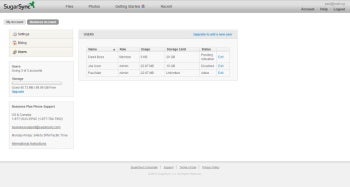
Figure 1: SugarSync for Business offers a centralized administration portal for managing multiple employee accounts within a company.
You can transfer large files without using email or setting up an FTP server. Right-click on a file within a SugarSync protected folder, and then click on SugarSync and Get Public Link. This creates a unique URL that you can use to download the file from a Web browser. Simply email the URL to colleagues or even share it on social media. Click on Public Files to see a list of files with unique URLs. This is also where the software tracks the download count for each URL, and you can also go here to disable the URL links if desired.
Finally, you can share entire folders, or just files, with other users by simply clicking on Share at the SugarSync Web interface. Depending on your needs, you can set file- and folder-sharing to read-only or with full-write access.
Once you share a file or folder, SugarSync takes care of the nitty-gritty work by sending an email message to instruct recipients on what to do next. As you can imagine, shared folders is an incredibly useful feature for collaboration within project groups or departments.