






You might think that the desktop is just another tile on the Windows 8 Start screen, but it’s where most small business users will spend their day. The desktop runs all of your legacy software; it’s where you store and manage your files, and you can browse the Web from there too.
While the new Metro interface is the main changes in Windows 8, Microsoft definitely made changes to the desktop, too. Here are some of the changes and challenges that await anyone who upgrades to Windows 8.
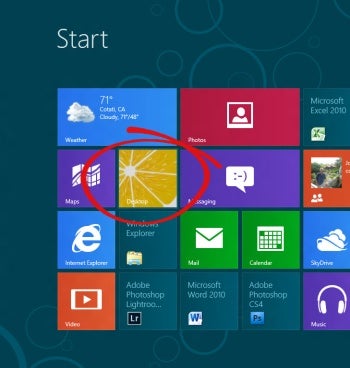
Figure 1: The desktop might be just one tile on the new Windows 8 Metro Start screen, but it’s where you’ll spend most of your workday.
The Windows 8 Details
In some cases, the little things in Windows 8 are going to make all the difference. For example Windows Explorer now has a Ribbon interface. Click the down-pointing arrow in the top-right of the window, or press Ctrl + F1 to see the Ribbon.
In Windows Explorer you can select viewing options from the icons in the bottom-right corner of the window. The One Folder Up icon takes you one folder up through your file system. A Copy Path button lets you copy the path of a file to the Clipboard to use in another program. Use the Share and View tabs on the Ribbon to select various options; and the file ListView runs “snaking-column style” not zigzag across the screen as it did in Windows Vista.
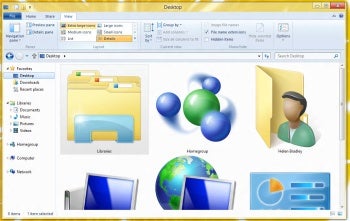
Figure 2: Windows Explorer now has a Ribbon interface and some long-overdue features such as options for displaying file name extensions.
Previews are live, so in the View tab you can mouse over a view’s preview to see what the folder would look like if you chose this option. And you can view file name extensions and hidden items with a single click on a Ribbon icon — putting these options in an accessible and visible place is a long-overdue feature.
The new Copy To and Move To options make it quick and easy to copy files and, when you do, you get a new Copy window that shows you the file copy progress. If you have multiple copy tasks running at once, they’re assembled into one dialog, and you can individually pause and restart each one.
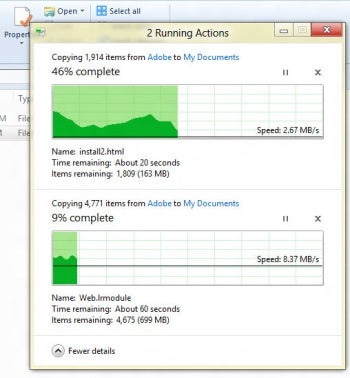
Figure 3: The new Copy dialog aggregates all your copy tasks and lets you pause them individually, if desired.
New Task Manager
The Task Manager has received a significant overhaul. The default view is a simple dialog that shows very little but, when you click More Details, you get access to a tabbed panel showing options that include Processes, Performance, App History, Startup, Users, and Services. In the new Startup tab you can view and manage the programs that run on startup and disable those you don’t want to run.
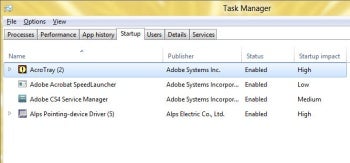
Figure 4: The new Task Manager contains a Startup panel where you can manage programs that run on starting Windows.
Which Internet Explorer 10 is that?
When it comes to browsing the Web, Windows 8 is a little confusing. It offers two versions of Internet Explorer, and they look and behave differently. The version on the desktop is the more recognizable of the two, and the Metro version that you run from the Start screen is very…well…Metro-like.