




Even though mobile devices can do almost anything, there will still be times when you need to access your home or office computer from a remote location. You might need access to your files or to perform some type of maintenance. Either way, the right remote access tools can help you connect to and operate a computer in your office as if you were sitting right in front of it. They vary in ease of use, features and cost, but we’ve collected five of the best for your consideration.
Remote access tools differ from remote support tools in that a remote access tool must be able to run unattended on the computer to which you connect. You can’t assume that someone will be there to start the remote computer, to launch software or to log in to an application.
When comparing remote access tools, cost will be one factor—many are free for personal use but not for business use. You should also consider the type of device you will use to make the remote connection and the operating system running on the remote computer—some remote access tools work with smartphones and tablets, while others won’t. Plus, not all remote access tools are compatible with all operating systems. Also consider the complexity of setting up the connection; some tools require a degree of technical knowledge and expertise and others do not.
5 Remote Access Tools for Small Business
1. LogMeIn Pro
LogMeIn recently discontinued its free service leaving the paid service as your only option. Pricing starts at $99/year, which lets you access up to two computers. LogMeIn offers a free trial period so you can try before you buy.
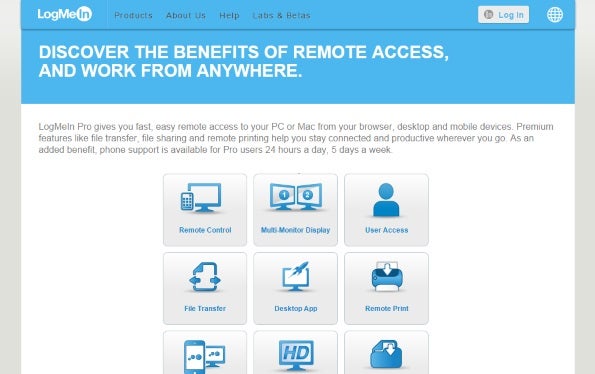
Figure 1: LogMeIn setup is simple and quick, and the tool is very easy to use.
Your money buys you a fully featured tool that installs easily, is simple to use and requires no technical expertise to configure. LogMeIn lets you access a computer remotely, transfer and share files, and print files from the remote computer to a local printer. The wake-on-LAN feature lets you wake a remote computer and put it to sleep. LogMeIn supports PC and Mac, and you can access the computer from a browser, a desktop computer or mobile device (there are corresponding apps for iOS and Android).
2. TeamViewer
TeamViewer combines remote support and remote access in one product. It’s easy to setup and to configure, and it supports Windows, OS X, Linux, Android, Windows Phone 8 and iOS. TeamViewer offers a free service for personal use only, and its business versions start at $749 and up (you are invited to use the free version to test its suitability for your needs).
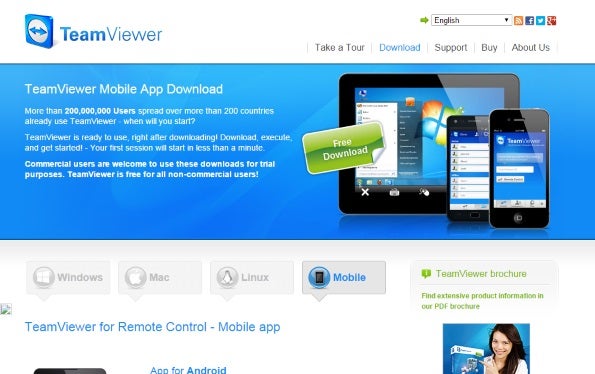
TeamViewer lets you remotely control a range of desktops, tablets and mobile devices.
TeamViewer lets you run an unattended computer remotely, transfer files, print remotely, and wake on LAN. You can also use it to access mobile devices such as iOS and Android devices from a Windows, Mac or Linux computer.
3. Splashtop
Splashtop works with Windows, OS X, Linux, Android, and iOS. It runs on smartphones, tablets and from within any Chrome browser or Chromebook. Splashtop started out as a media-sharing tool and, as such, it’s free for personal use on a single Wi-Fi network such as your home network. For business use, prices vary by the number of users and starts at $60 per year/per user (the free, 7-day 2-user trial version lets you try before you buy). Features include remote control, file transfer (on Windows computers), and multi-user access.
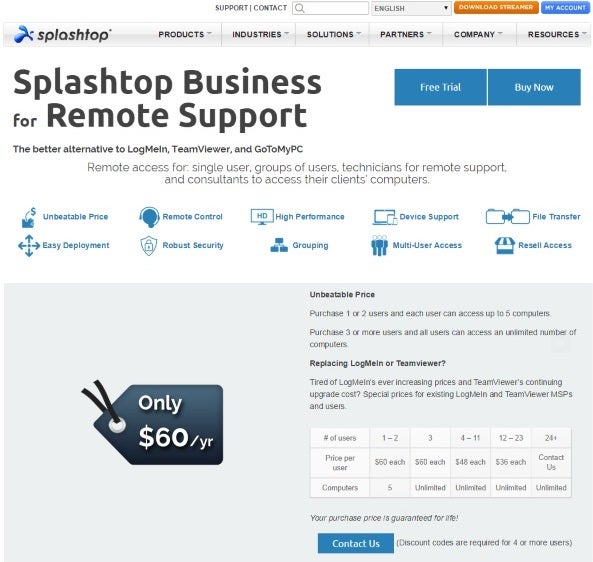
Splashtop operates on a range of devices and incorporates remote access features.
4. Chrome Remote Desktop
Chrome Remote Desktop is an app that you install in the Chrome browser on computers that you want to connect to, and you’ll find it in the Chrome store. The app’s one downside is that the computer you want to connect to must be logged in to Chrome before you can make the connection; and you can’t switch users on the fly.
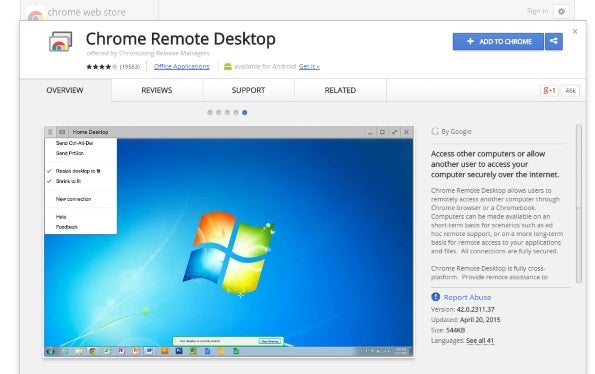
The Chrome Remote Desktop app installs and runs in your Chrome Web browser.
If you need only remote access, and if you don’t need all the features offered by the paid applications, then Chrome Remote Desktop might be worth a look. The app supports Windows and OS X, and it’s free for personal and business use.
5. Microsoft Remote Desktop
Microsoft Remote Desktop ships with the Windows operating system and additional client applications are available for the Mac and Android devices. Using this application you can control a computer remotely—however, that computer must be running a Pro/Professional, Enterprise, Business or Ultimate version of Windows. That means you can’t use it to run a computer running Windows Home or on any non-Windows operating system.
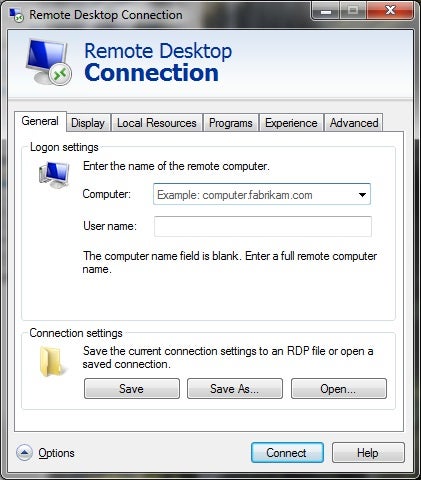
Microsoft Remote Desktop connects only to computers running certain Windows versions.
Remote Desktop may also require some technical expertise to set up—such as identifying the computer to connect to, configuring it to allow remote connections and so on. That said, if your system meets Remote Desktop’s specifications, it offers a simple way to connect to your remote data and applications.
One caveat when you’re investigating remote access tools. Because the premise of remote access is to access an unattended computer, make sure to use a reputable service so you don’t risk compromising the security of your computers and their data.
Helen Bradley is a respected international journalist writing regularly for small business and computer publications in the USA, Canada, South Africa, UK and Australia. You can learn more about her at her Web site, HelenBradley.com
| Do you have a comment or question about this article or other small business topics in general? Speak out in the SmallBusinessComputing.com Forums. Join the discussion today! |