






Lately, we’ve been increasingly impressed by the capabilities of relatively small, relatively low-priced inkjet printer/scanner/copiers. Compared to such all-in-one compacts, Canon‘s Pixma MX7600 is a bruiser: It weighs a hefty 37 pounds, measures a bulky 20 by 21 by 13 inches, and will set you back $400.
So how does the MX7600 justify its price as a premium small-office paper-pusher? Well, it includes the often-overlooked fourth function: not only printing, copying, and scanning but faxing. It meets the requirement of an automatic document feeder (ADF) to save you the tedium of placing and flipping sheets for multipage copying and faxing jobs.
It offers an Ethernet as well as USB 2.0 interface for workgroup networking (but not wireless networking). It uses separate cyan, magenta, and yellow ink cartridges instead of a tricolor cartridge so you don’t waste money replacing all the colors when only one has run dry. It has duplex (double-sided) printing as standard equipment. It’s pretty fast — usually (see caveat below).
But when it comes to the real reason to consider the costly Canon, we’ve got two words for you: Print quality. All right, five words: Print quality on plain paper.
Inkjet printers, as you know, spray liquid ink onto paper. When the latter is cheap copier paper, ink tends to seep or soak into the page a bit, leaving the fuzzy edges that often let you tell inkjet from laser printer output at a glance. Hence the rows and reams of higher-priced, specially coated inkjet paper available at your local Staples or Office Depot.
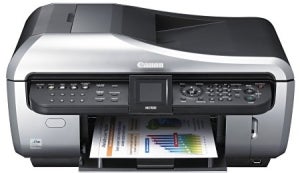 |
| The Canon Pixma MX7600 Office All-in-One Printer |
But the Pixma MX7600 performs a nifty trick: It turns plain paper into coated, spraying a specially formulated clear ink onto the page before printing its text and graphics, using pigment-based cyan, magenta, yellow, and black as well as the usual dye-based black.
Yes, the phrase clear ink has an emperor’s-new-clothes ring to it, and we lost track of Canon’s technical explanation of its Pigment Reaction Technology once we got to the polyvalent metal ions. But we’ll be deuced if it doesn’t make a visible difference.
Nothing Fancy, Thanks
The first pages we printed with our test unit were 8 by 10-inch photos on W.B. Mason bargain-brand copier fodder, using the Canon’s default (standard print quality) mode. The results provided two pleasant surprises: They arrived in only 27 seconds apiece, and were as bright and sharp as the slower-to-arrive images on inkjet paper we’ve seen from many test models, or at least those printers’ much slower best-quality plain-paper pix.
Other tests yielded similar comparisons: The Canon’s plain-paper output was comparable to that of rivals set for higher print quality or stepping up to coated paper or both. Higher-speed draft-mode text documents, for example, definitely surpassed the usual good-enough-for-in-house-use rating, coming close to (if still a little shy of) show-it-to-a-client quality.
For the most part, though, draft mode wasn’t that much faster than normal mode, just as high-quality mode was wasn’t that much better (though much slower). So we spent most of our time with the PX7600 printing in standard mode on plain paper — interestingly, Canon’s software driver doesn’t even list inkjet paper as a choice on its menu of media types, skipping right from plain to glossy or matte photo paper.
Text was first-class, even as petite as 6-point Times New Roman, while small- and medium-sized solid-color areas showed almost no trace of banding. One torture test, a full-page PowerPoint slide with a solid purple background, did show some banding. That was almost reassuring. Until then, we were wondering if Canon had hidden a color laser engine somewhere under the hood.