







Maintaining effective small business security is an ongoing effort, and keeping Windows 7 PCs secure isn’t easy. Employing a firewall and anti-virus software are good first steps, but to ensure better control over who uses your Windows 7 PCs — and how they are used — check out the following tips.
5 Windows 7 Small Business Security Tips
1. Make Sure Users Don’t Have Administrator Accounts
Depending on how you set up you computers and small business network were set up, employees may have user accounts with administrative rights to the computers they use. This is bad, because it rolls out the red carpet for malware; the potential for infection greatly increases when administrator access is available.
It also gives your employees the freedom to install — intentionally or not — all kinds of unnecessary software (e.g. various browser toolbars and other Internet-borne garbage), which can over time cause security, performance and reliability problems.
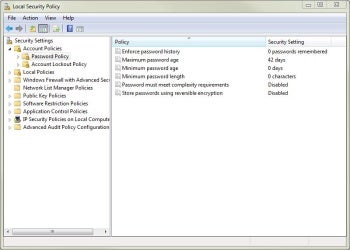
Figure 1: With this setting you can require complex passwords that expire periodically and can’t be immediately reused.
To fix this problem: search for and run lusrmgr.msc (Local Users and Groups) from the Start menu. Double-click Local Users and Groups, then Users, then the user account in question. Finally, click the Member Of tab, and if Administrators is listed, highlight it and click Remove. (Note: If it turns out that the user owns a computer’s only administrator account, you’ll have to create a new administrator account before this will work.)
NOTE: Tips 2, 3 and 4 require Windows 7 Professional, Ultimate or Enterprise.
2. Enforce Password Rules
You’ve probably told your employees not to use easy-to-guess passwords and to change them regularly, but are they actually doing it? Probably not. If you’re serious about it, however, you can enforce a number of password rules, including their length, complexity, and how long before they must be changed.
To configure password rules, search for and run secpol.msc (Local Security Policy) from the Start menu, then double-click Account Policies and then Password policy. Double-click Password must meet complexity requirements, select Enabled then click Apply and OK. This will require that passwords not contain part of the username (Duh!), be at least six characters long and include characters from at least three of the following four categories:
- Uppercase letters
- Lowercase letters
- Numbers (0-9)
- Non-alphabetic characters (e.g. $,%,&)
After you turn on password complexity, you may want to consider doing the same for some of the other password settings shown. For example, setting Maximum password age will force users to change their passwords at the specified interval, and Enforce password history will limit users’ ability to reuse old passwords.
By the way, these rules will only take effect at the next password change, and in some cases your user accounts may automatically be set to have passwords that never expire. To check this (and correct it if necessary), search for and run lusrmgr.msc from the Start menu, then double-click Users, double-click a particular user, and make sure that Password never expires is not checked.