







One of the most productive tools that just about any small business can have is remote access — the capability to login to your office computer or network from an off-site location. Whether you simply need to check e-mail from home at night, or you spend your working hours on the road and want to stay connected with the home office, remote access gives you the flexibility to work or tap critical information you need anytime, anywhere.
According to Citrix Online, a division of Citrix Systems, Inc., located in Santa Barbara, Calif., the demand for remote access is expanding rapidly, to the point where employees expect the capability. Seeing the need, Citrix Online has taken its brand of remote access technology and developed it into three distinct services that can benefit small businesses: GoToMyPC.com, a secure Web-based remote desktop access service, GoToMeeting for conducting meetings online and GoToAssist, a Web-based, technical support application.
Over the course of three articles, we’ll look at the services to see exactly what they offer small businesses.
GoToMyPC
The first of Citrix Online’s products is GoToMyPC, which lets you connect to your office computer from any Web-connected computer — from home or on the road — and access any file, application or network resource just as you could if you were sitting in at your office desk. According to Jason Randall, the company’s product line manager, because GoToMyPC is Web-based, it’s both easier and cheaper than other remote access alternatives such as VPNs.
“It’s very easy to use,” he said. “When you sign up, a plug-in automatically configures itself on your office PC. Once you sign in to the site from your home computer, the software launches a Viewer that lets you see and control your office desktop.” You can view your office desktop from any Web-connected computer — Windows, Windows CE, Mac, Linux or Solaris.
|
|
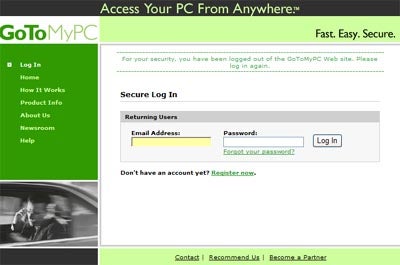
Enter and Sign in, Please — Signing on to GoToMyPC requires your e-mail address and a password. When the viewer opens, you’ll be prompted to enter a second password. |
Two Places At Once
With the following features, GoToMyPC affords you a lot of the productivity you’d have back at the office:
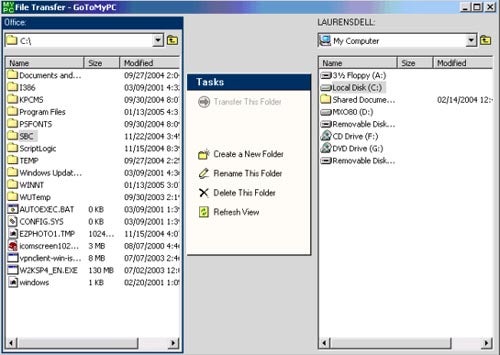
- File Transfer: Transfer files, folders and directories between computers. A split screen view makes it easy to select and move files.
- Invite a Guest: You can invite a second person to temporarily share or control your computer — convenient for quick collaborating.
- Remote Printing: Print files from your office PC to the printer at your current location.
- Cut and Paste: If you don’t need the whole file, you can cut and paste text between computers.
- PocketView: Connect wirelessly to your office desktop from any Pocket PC or Windows CE device.
What About Security?
Every small business owner must consider security before implementing any remote access plan. Keeping your data secure is a top priority, regardless of your industry, but especially for SMBs that must comply with state and Federal regulations like HIPAA and Sarbanes-Oxley.
“GoToMyPC uses a number of security features to protect a customer’s data,” said Randall,” including end-to-end 128-bit AES encryption and nested passwords.” AES is the state-of-the-art standard for encryption, used by the U.S. government and financial institutions. According to the company, a customer’s data remains fully encrypted the entire time and that no one, not even Citrix Online can access the data or the code to access the encryption keys. You can read more about the company’s security measures on the Web site.
|
|
Moving Files — The split screen shows the office PC directory on the left and a remote PC’s directory on the right. Move files and folders in either direction by highlighting a file and selecting the Transfer button. |
Which Version’s Right for You?
The service comes in three flavors, and the version you choose depends pretty much on the size of your company and how much administrative control you want. Take a look at your options:
GoToMyPC Personal, designed for single-user accounts, accommodates up to 20 computers. The pricing works out to $19.95 per month for one computer ($179.40 per year) and $29.95 a month for two computers ($269.40 per year). It’ll cost you $14.98 a month for each additional PC ($135 per year).
GoToMyPC Pro accommodates an unlimited number of PCs and includes an Administration Web site. You can add, suspend and delete employee accounts and/or run reports to track usage. Pricing starts at $67.80 per month for four computers.
GoToMyPC Corporate, like the Pro version, supports an unlimited number of PCs and includes the Administration Web site. In addition, you can create and manage groups, control which employees can access certain features and create your own password enforcement policies. You can also limit the days and time employees can use the service and require the use of security features. Pricing for this service level under $200 per month for 10 computers.
Lauren Simonds is the managing editor of SmallBusinessComputing.com
| Do you have a comment or question about this article or other small business topics in general? Speak out in the SmallBusinessComputing.com Forums. Join the discussion today! |